




Save time during your daily checks by setting your most-used screen as your default startup screen in FarmConnect 2. Instead of navigating through the menu every time you log in, the system opens directly on the overview you need most, such as the Overview per animal.
How to set your startup screen
1. Navigate to your preferred screen in FarmConnect 2.
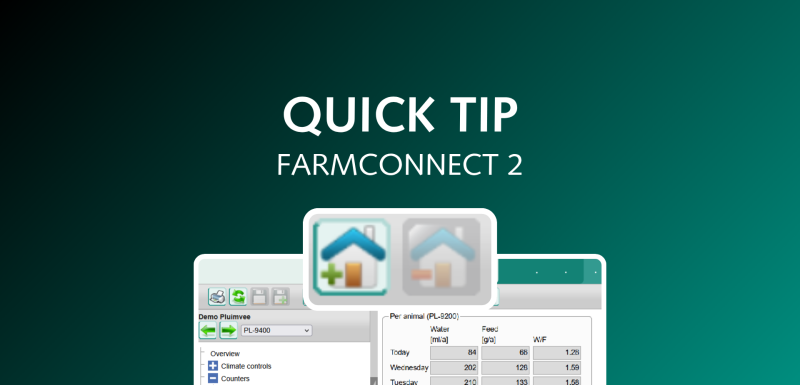
2. Go to the icon bar at the top of the screen.
3. Click the Home Add icon:
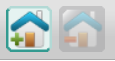
This screen is now saved as your default startup screen for future logins. Good to know: this startup screen is connected to your username
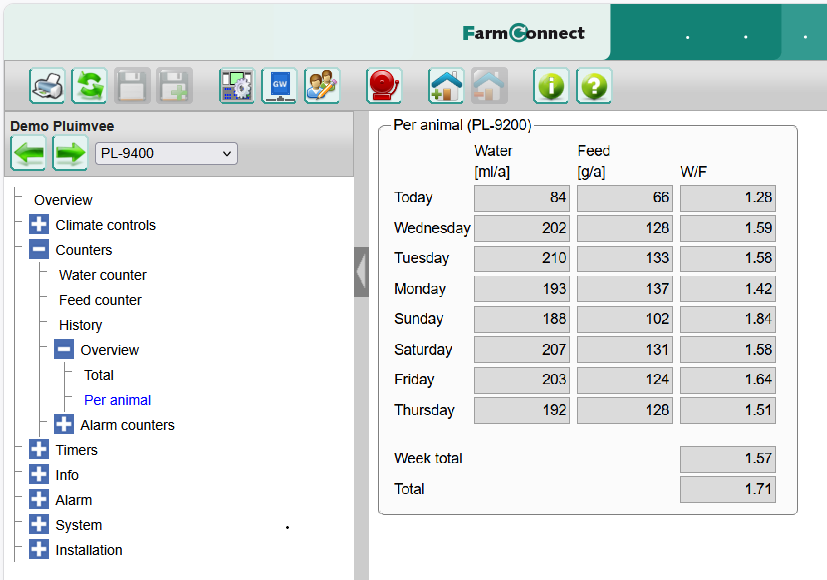
How to remove or change your startup screen
If you want to change your startup screen or revert to the standard view:
1. Navigate to the current startup screen.
2. Click the Home Remove icon in the top bar:
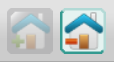
This way you can change your startup screen and start directly with the right screen and you save some time.


We are available by telephone during office hours (8:00 a.m. – 5:00 p.m.).
+31 (0)495 - 63 29 26